Property Editor
View and edit IFC properties
directly — no BIM authoring tool needed
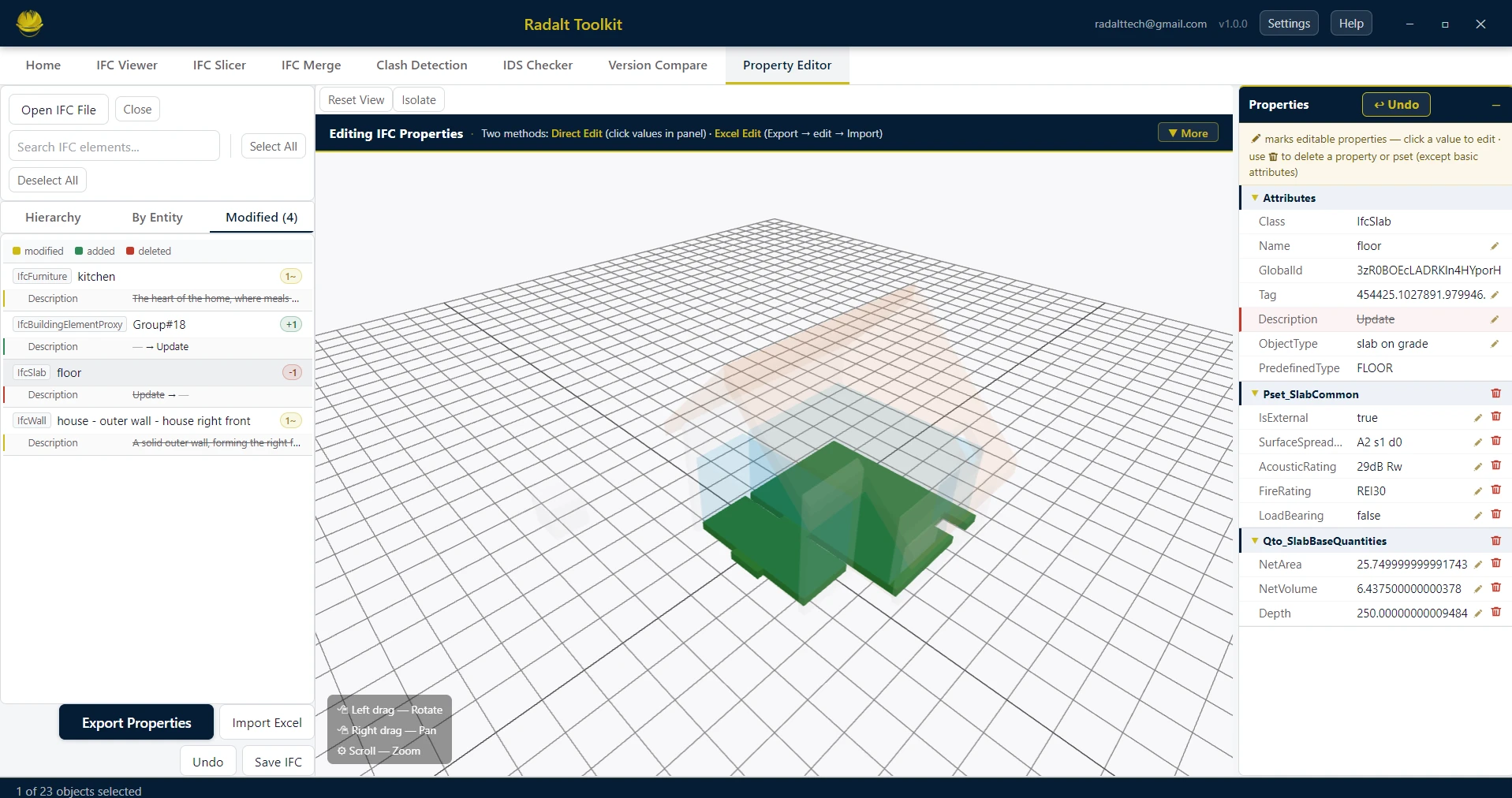
Open any IFC and browse element properties instantly. Edit values directly in the panel, manage property sets, or export to Excel for bulk changes — then import back and save a fully updated IFC. No Revit license required.
Scenarios recreated using sample files from buildingSMART International website.
Capabilities
What Property Editor can do
Element Browser
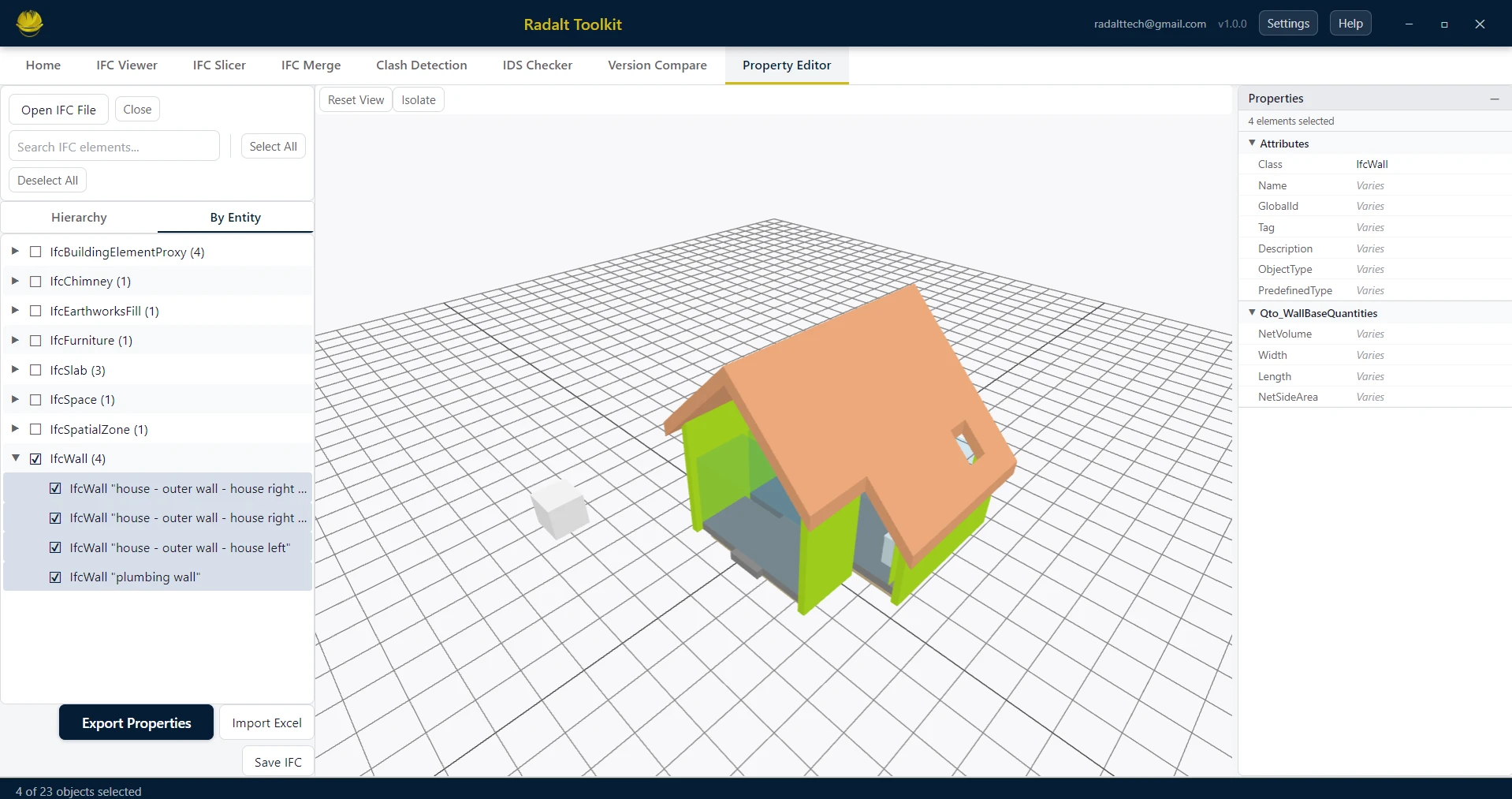
Navigate all elements via the full IFC hierarchy or a flat entity-type view. Find the elements you want to inspect or edit quickly regardless of IFC size.
Direct Inline Editing
Click any editable property value in the panel and type a new value — no spreadsheet needed. Name, Description, Tag, ObjectType and all custom Pset properties are editable in place.
Property Set Management
Add new property sets to any element, add or delete individual properties, or remove entire Psets — all from within the Property Editor panel without touching the IFC file manually.
Spreadsheet-based Bulk Editing
Export selected element properties to Excel, edit values in bulk, then import the updated sheet back to apply changes — ideal for large-scale data corrections across hundreds of elements.
Undo and Change History
Every edit is tracked with full undo support (Ctrl+Z, up to 20 steps). A dedicated Modified tab in the model tree lists every element you have changed, with color-coded badges showing how many properties were added, modified, or deleted.
Multi-element Selection
Select multiple elements at once with Ctrl+click. The property panel shows values shared across all selected elements — edit once to update the whole selection simultaneously.
Isolation Mode
Isolate your selected elements in 3D to focus exclusively on the subset you are editing, hiding the rest of the IFC from view.
Export Modified IFC
Export the complete updated IFC with all your property changes applied. The exported file is fully valid and compatible with any IFC-compliant tool.
Modified Tab
Track every change in the model tree
As you edit, the Modified tab in the model tree updates live — listing every changed element with color-coded badges for added, modified, and deleted properties.